


PEMP Car Audio
PEMP (5610) Ultra-Thin 12.3" Qualcomm Snapdragon 8 Cores 8+128 GB Android Screen, for BMW 5 Series E60 E61 CCC Android 13 Wireless and Wired CarPlay Android Auto Calls Using The OEM Microphone Monitor(2005-2010)
- Preço normal
- $609.00
- Preço de saldo
- $609.00
- Preço normal
-
$0.00
Shipping calculated at checkout.

$19.90

$0.00
$79.00

$0.00
$69.00

$79.00

$29.00

$0.00
$23.90

Return to your nearest address. (USA and Europe)


Introduction to screen features
Read More


Material craftsmanship at the detail end
Read More


Intelligent Interconnection
Support wired and wireless
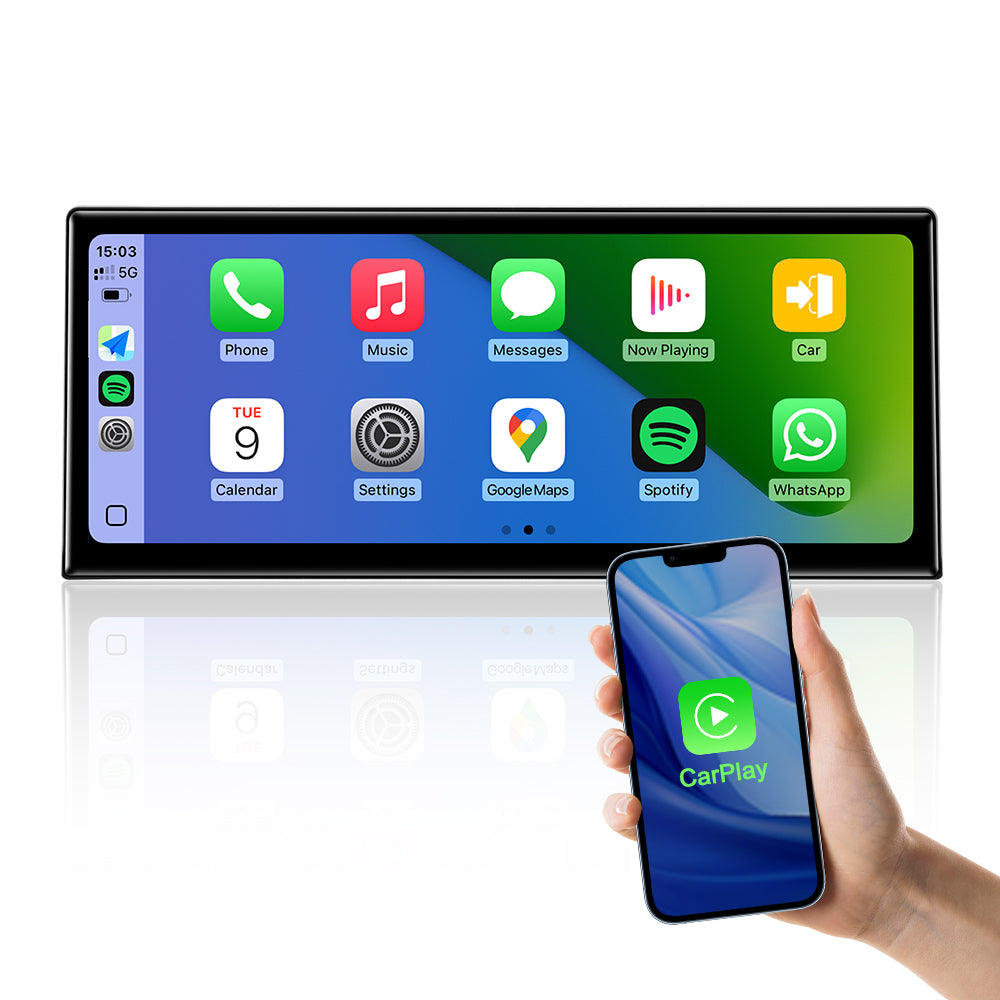
Support wied wireless carplay
Please use USB1 to use the wired CarPlay function.
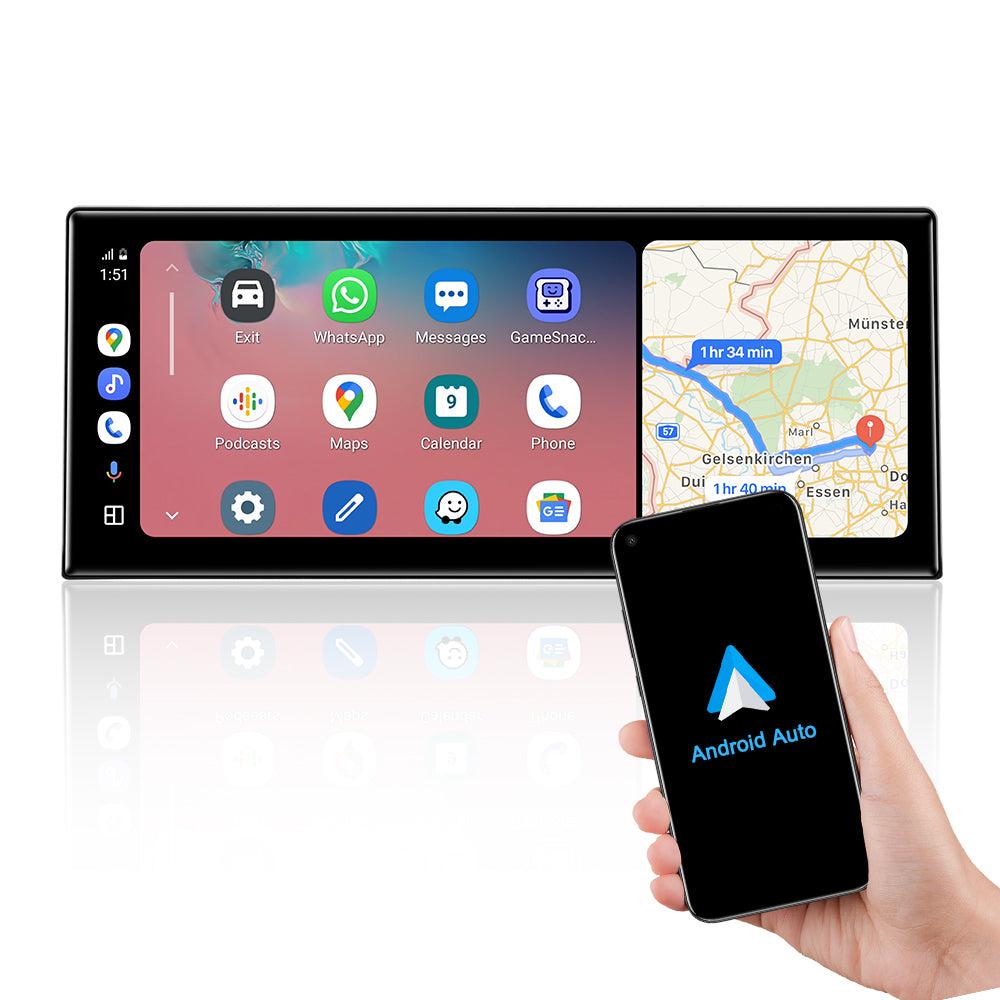
Support wied wireless Android Auto
Please use USB1 to use the wired Android Auto function.
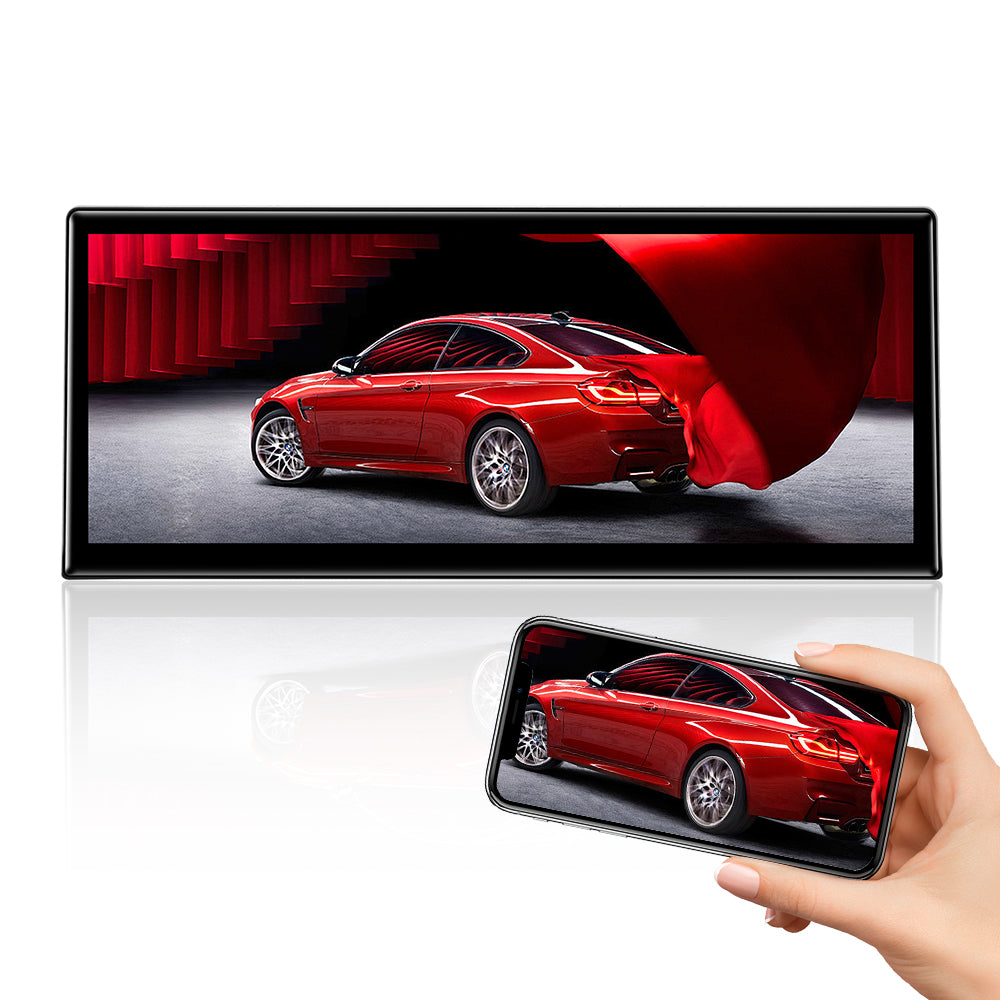
Support wied wireless Mirror Link
Please use USB1 to use the wired Android Mirror Link function.
Product Features
Detailed Craftsmanship
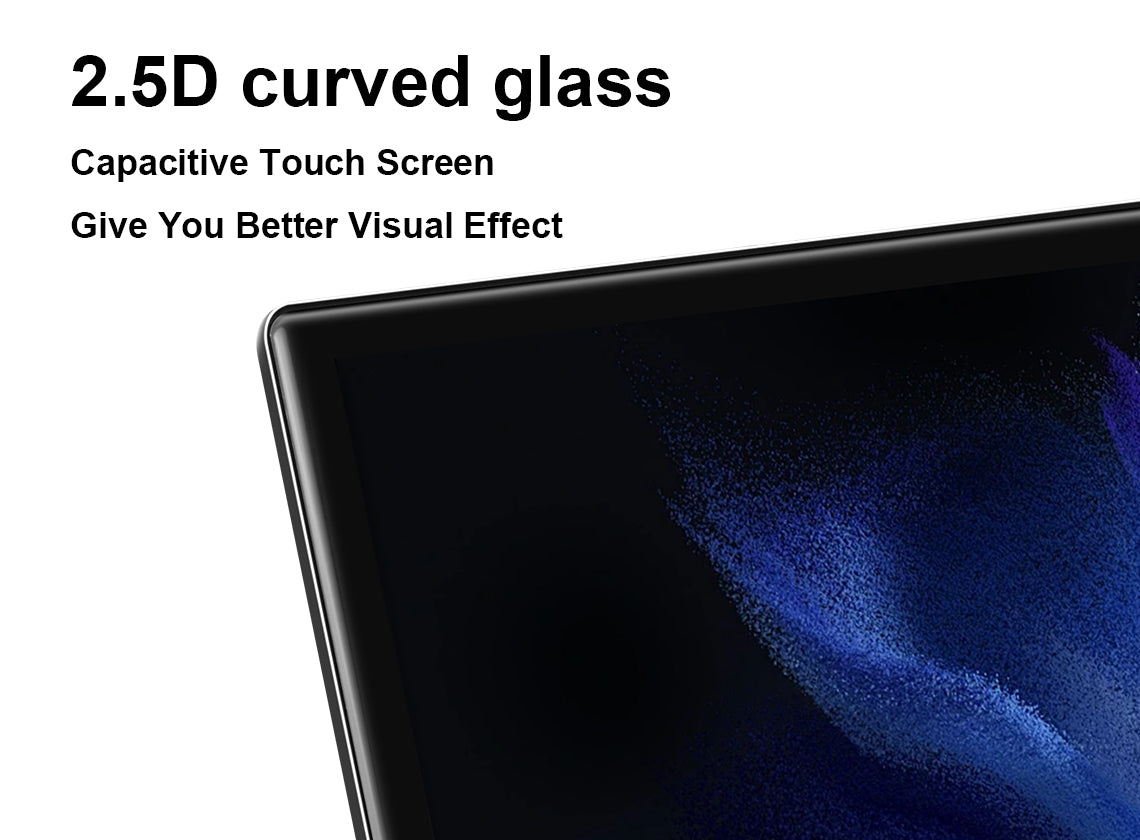
2.5D capacitive touch screen with curved design to bring a more layered visual effect, curved edges to make the light refraction softer, whether you are watching pictures or videos, you can feel the picture suspended like a three-dimensional sense of view, for you to enhance the dual experience of touch and visual.
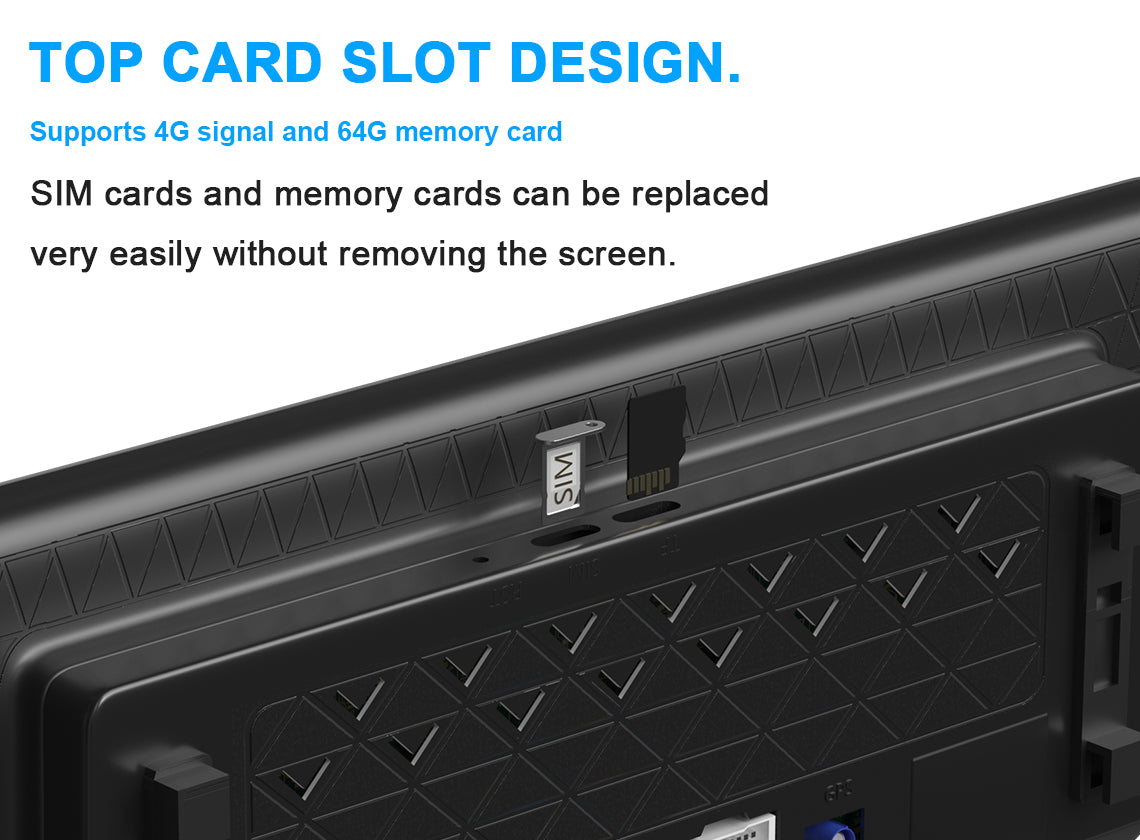
Top Card Slot Design.
Supports 4G signal and 64G memory cardNo need to disassemble the screen,can be very easy to replace theSlM card and memory card, the whole processwithout complicated operation.

Product Installation and Setup
Approaches to common problems

Manual Transmission Back Camera Settings
Settings> factory>pass word070305> vehicle> Gear Selection, pls select type2 or 3 Then reverse the vehicle, and the reversing screen will be displayed normally.

Please connect the audio harness to the armrest box AUX IN connector
If you have properly adapted the fiber optic harness and selected the AUX menu in the OEM interface, you still can't get CarPlay or Android auto sound. Be sure to connect the audio cable between the armrest box AUX IN and AUDIO OUT.

Please Connect The Usb Aux Box Between The Audio Out And The Usb Of Your Armrest Box
If the product you purchased is With the AUDIO AUX black box You don't need to switch the USB harness behind the original radio, just connect the USB AUX box between the Android's AUDIO OUT and your armrest box's USB.

Support original steering wheel and button control.
You can use the original steering wheel and knob to control the Android system. Note that F10 F01 does not support steering wheel pulley up and down control.
You May Also Like
IN THE BOX
1×Android Screen

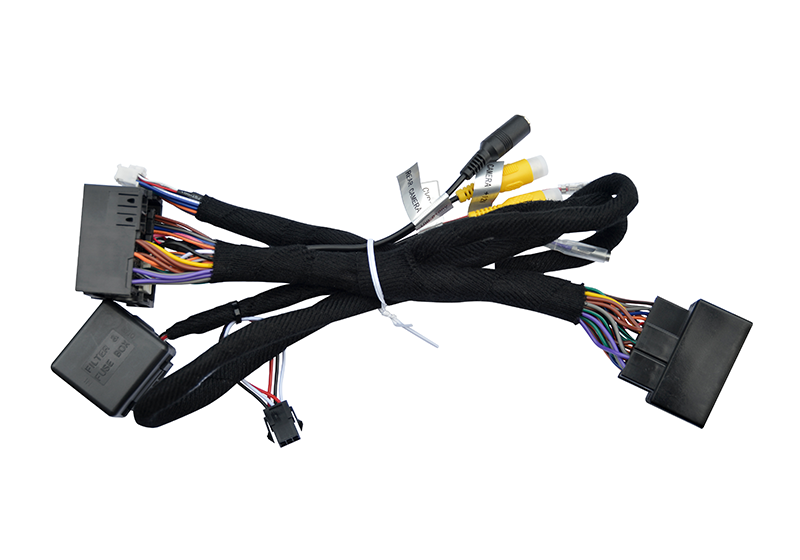
1 x ISO Wiring Harness
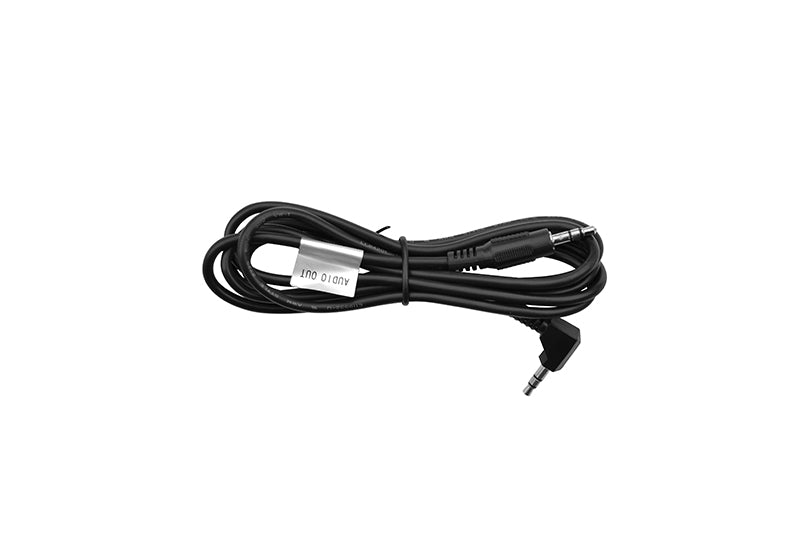
1 x USB Cable
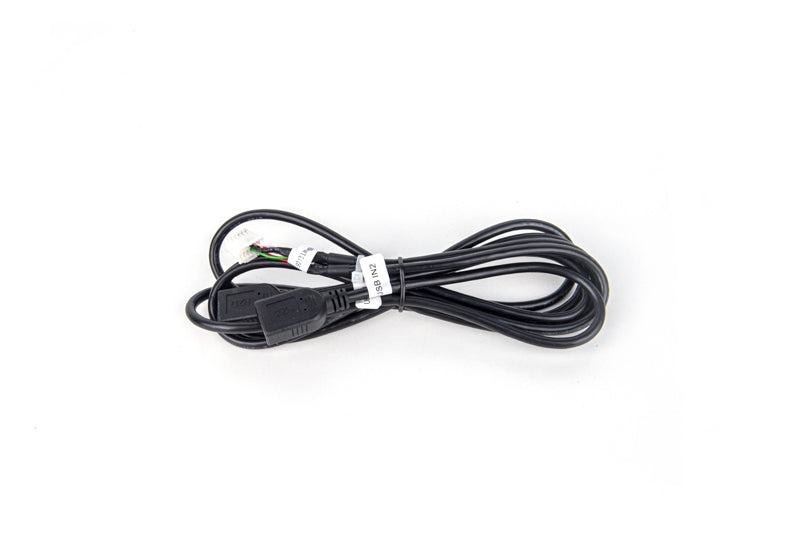
1 × Audio Cable
1 × LVDS Adapter Cable

1 × GPS Antenna
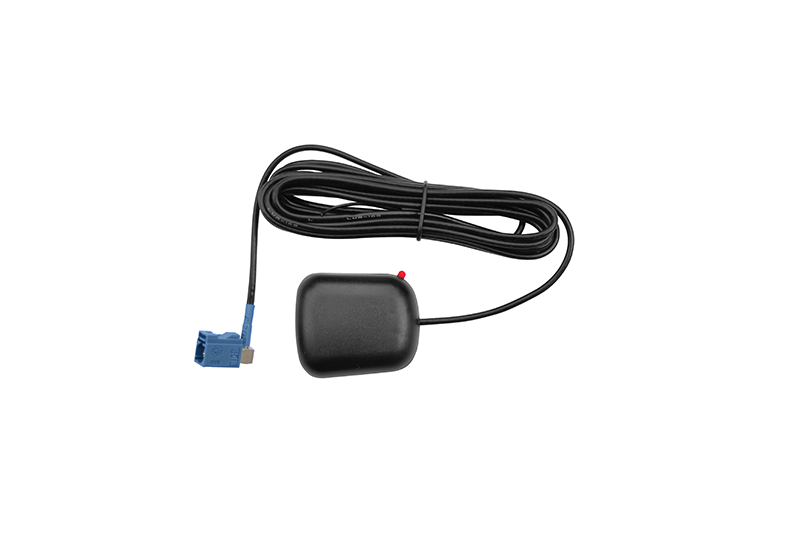
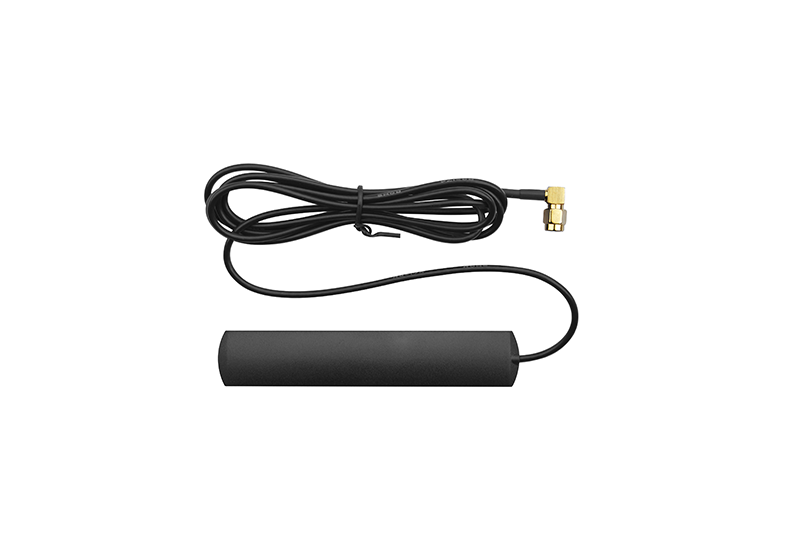
1 × 4G Antenna
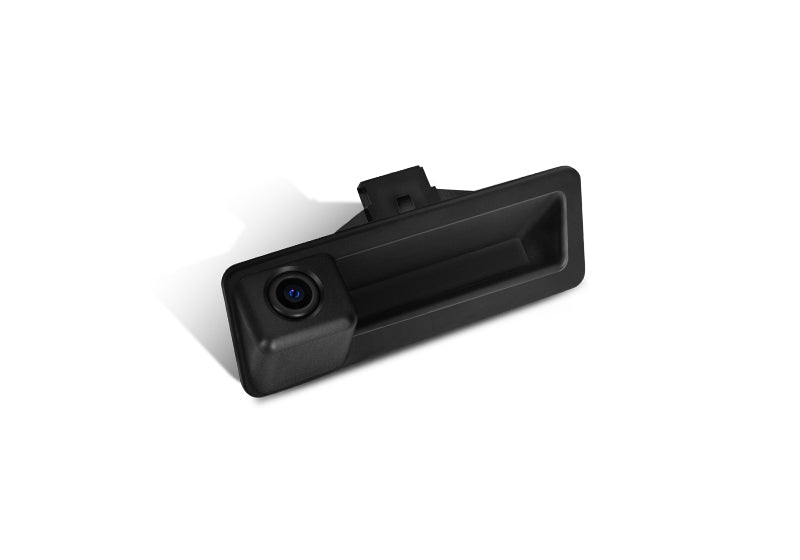
Reversing Camera (Only for With Camera option)
360 panoramic camera (Only for With Camera option)

Frequently Asked Questions
Pre-Sales FAQ
Answer your pre-sales questions
- Since all our screens use AUX to transmit sound, you must check if you have the AUX menu in your OEM system.
- Otherwise you will have problems with no sound on the screen after installation.
- Below are the differences between with and without the AUX menu:
- Situation 1: With AUX menu
- If your OEM system has an AUX menu, then you can purchase our screen and install it directly.
-

- After installation you just need to enter your OEM system and switch the multimedia mode to AUX to get normal sound.
-

- Situation 2: No AUX menu
- If your OEM system does not have the AUX option, then you will need to purchase our AUX Activator to activate your AUX menu.
-

- After purchasing the AUX Activator and activating the AUX menu, an AUX option will appear in your OEM system. After the screen is installed you just need to go into the OEM system and switch the multimedia mode to AUX to get normal sound.
-

- This content describes in detail the difference between Android screen and LINUX, I believe you will have a clear understanding of them after reading all the content, and then according to your needs to buy the right screen for you.
- You can also copy the video link to your browser off to see the detailed video tutorial:
- https://youtu.be/wReZG_1Aajo
- Or scan the QR code of the video to watch it:
-

- Below is a general overview of the differences between the Android screen and the LINUX screen:
-

- Points of difference:
- Difference 1: Start-up speed difference
- Android screen startup time is about 35 seconds,
- LINUX screen startup time is about 9 seconds.
-

- Difference 2: Price difference
- Android screens are relatively expensive due to their functionality and highly regulated configuration.
- LINUX screens are relatively simple in terms of functionality and configuration and are relatively inexpensive.
-

- Difference 3: APP Download and Installation.
- Android screen supports downloading APP and installing,
- LINUX screen can't download APP and only supports using some APP by connecting Carplay and Android Auto.
-

- Difference 4: SIM card and TF/SD card difference
- Android screen has built-in SIM card and SD/TF card slot, support using SIM card network and TF/SD card memory expansion.
- LINUX screen has no SIM card and SD/TF card slot, does not support SIM card and TF/SD card function.
-

- Difference 5: Built-in navigation .
- Android screen with built-in navigation, support for connecting GPS antenna, you can use the navigation directly without connecting the phone.
- The LINUX screen does not have built-in navigation and does not support the connection of a GPS antenna; navigation must be used through the phone with Carplay and Android Auto connected.
-

- Difference 6: Memory Difference
- Android screens support the selection of memory configurations.
- LINUX screens do not support the selection of memory configurations.
-

- Difference 7: Antenna and installation difficulty.
- Android screen support GPS and SIM card, standard equipped with GPS and 4G antenna, the installation of the GPS and 4G antenna need to find the location of the installation and the location of the cable, the difficulty of installation is relatively difficult.
- LINUX screen does not support GPS and SIM card, do not need to install GPS and 4G antenna, the difficulty of installation is relatively easy.
-

- Difference 8: CPU difference
- Android screen uses a Qualcomm processor,
- LINUX screen uses a Sunplus processor.
-

- Difference 9: Aftermarket Reverse Camera
- Android screen supports installation of 1080P and 720P AHD/CVBS aftermarket reversing cameras.
- LINUX only supports to install 720P aftermarket reversing camera.
-

- Similarities:
- Similarity 1: Intelligent Connectivity
- Both Android and LINUX screens support wireless and wired Carplay & Android Auto connectivity.
-

- Similarity 2: Dual system switching
- Both Android and LINUX screens support OEM systems as well as quick switching between corresponding aftermarket systems (Android/LINUX).
-

- Similarity 3: Camera and Radar .
- Android screen and LINUX screen both support OEM reverse camera and radar display.
- Android screen and LINUX screen both support installation of aftermarket reverse camera.
-

- Similarity 4: Same screen specs.
- Both the Android screen and the LINUX screen use touchscreens of the same size and resolution.
-

After-Sales FAQ
Answer your pre-sales questions
- If you experience abnormal sound problems, you can check the screen and cables one by one by following the steps in this document.
- You can also copy the video link to your browser off to see the detailed video tutorial:
- https://youtu.be/QKJVoJlUpiU
- Or scan the QR code of the video to watch it:
-

- Step 1: Click CAR INFO on PEMP home page to enter the OEM system, check whether the OEM system can be displayed normally.
-

- Step 2:If the OEM system displays abnormally, refer to the documentation on how to handle abnormal OEM system displays or contact Customer Service.
-

- Step 3: If the OEM system displays properly,press the FM/AM button and check that the radio is producing sound.
-

- Situation A: If there is no sound from the radio after pressing the FM/AM button .
- Please refer directly to the method of B-7 and B-8 in case B to check your cables.
- Situation B: If the radio sounds when the FM/AM button is pressed .
-
- B-1: If there is sound coming from the radio, click Multimedia-External Devices, then select Multimedia Mode as AUX Front.
-

- B-2: If you are connected to OEM Bluetooth, disconnect OEM Bluetooth and delete the connection history.
-

- B-3: Set AUX auto switching to off.
- If you have a Qualcomm 680/685 screen, the setup path is Settings - System - AUX Settings.
-

- If you have a Qualcomm 662/8953 screen, the setup path is Settings - Factory - 070305 - Vehicle - AUX Switching Modes.
-

- B-4: The default sound of AUX mode is rather low, please try to adjust the sound greatly by using the sound adjustment knob.
-

- B-5: Connect one end of the supplied AUX cable to the AUDIO OUT port on the IOS harness; The other end connects to the car's AUX IN (usually located at the armrest box).
-

- B-6: Some cars have fiber optic cable on OEM ISO harness, if your OEM ISO harness has fiber optic cable, please transfer it to PEMP ISO harness.
-

-

- B-7: Check the ISO harness plugs and re-unplug and re-insert the plugs .
-

- B-8: Check the power cable and LVDS cable on the back of the screen and unplug and re-plug them.
-

- If you are experiencing problems with your OEM system displaying anomalies, you can check your screen and cables one by one by following the steps shown in this document.
-

- You can also copy the video link to your browser off to see the detailed video tutorial:
- https://youtu.be/dxED9pfNt08
- Or scan the QR code of the video to watch it:
-

- Step 1: Press the FM/AM button and check the radio for sound .
- A: If you can hear the FM sound, please go to the PEMP system homepage, click “Settings” - “Factory Settings” - "070305" - "Vehicle display" and "CAN Protocol" , and select the vehicle protocol and resolution Select the option that corresponds to the OEM system.
-

-

- B-1: If the OEM screen still doesn't display properly or you can't hear the FM sound, you need to check if there is a fiber optic cable on the plug of the OEM ISO harness, and if there is, you need to transfer it to the PEMP ISO harness.
-
- B-2: Because the plug is designed to be tight in order to prevent the plug from loosening, it is easy for the ISO plug to not be inserted to the end and have poor contact.
- Therefore, we need to unplug the ISO plug, and then re-insert it, you can use a little force when inserting, please make sure that the plug is completely inserted to the end.
-

-

- B-3:Then check the LVDS cable behind the screen and the white power plug.
- As some cars have less space to install the screen, it is easy for the cable to be squeezed, which can lead to loose plugs and poor contact.
- So we need to unplug and re-plug the cable and make sure it is fully inserted and that it is not pinched when installing the screen.
-
